Guides · How to
How to add a watermark to many photos at once on a Mac
A discreet signature on every photo you share, added to the whole batch in one go. Settings that work, and good habits.
Short answer. In Misuro, drop the photos, turn on Watermark, type your name or “© Studio”, choose position, opacity and size, and export: the signature is added to every photo, at the same proportion whatever its size. With Preview you can only do it one photo at a time, with Markup.
A signature on photos you share online tells people who took them, follows them when they are reposted and discourages careless reuse. It doesn’t stop a determined copy, but it changes how a photo travels. Adding it by hand to dozens of photos, though, is tedious work.
One photo at a time: Preview
- Open the photo in Preview and show the Markup toolbar (View › Show Markup Toolbar).
- Click the Text tool, type your signature and choose font, size and colour.
- Drag it into place and export a copy (File › Export), so the original stays clean.
It works, but every photo needs the same steps, and the text never ends up in exactly the same place or at the same proportion.
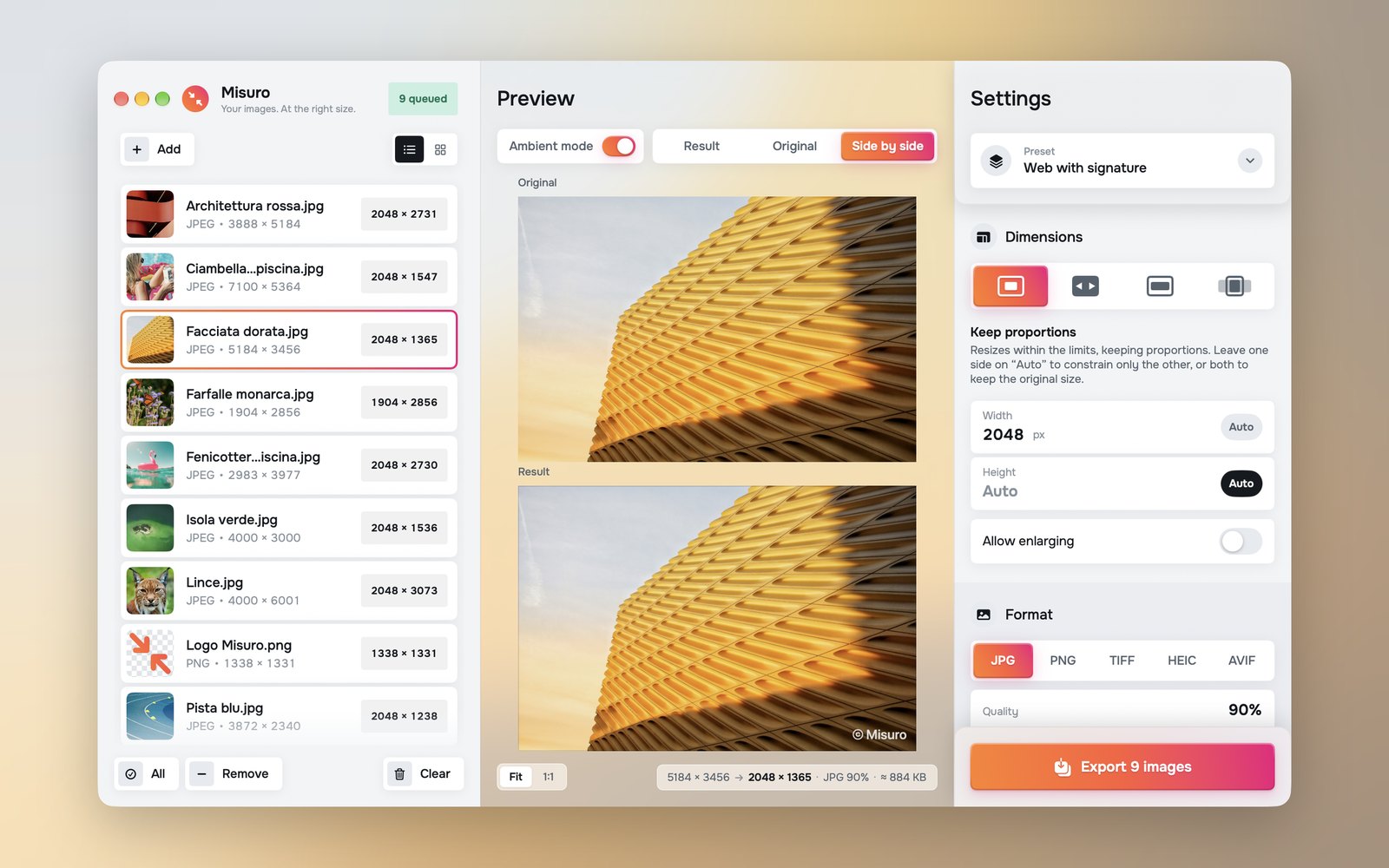
All the photos at once: Misuro
- Drop the photos or the folder into the window.
- Turn on Watermark and type the text: your name, “© 2026 Studio Name”, your website.
- Choose the position on the grid of nine points: bottom right is the classic choice, out of the way of the subject.
- Set colour (white, black or any colour), shadow, opacity, size and margin.
- Check a few photos in the preview, then export. The originals are never touched.
Size and margin are a percentage of the image, so the signature has the same proportion on a 1080-pixel post and on a 4000-pixel print, and on vertical and horizontal photos alike.
Settings that work
| Setting | Starting point | Why |
|---|---|---|
| Position | Bottom right | Visible, but away from the subject |
| Opacity | 60–80% | Readable without covering the photo |
| Size | 3–5% | Small, like a signature on a print |
| Margin | 3–4% | Survives a slight crop |
| Shadow | On | Readable on light and dark areas alike |
White or black? White with a light shadow works on most photos. On very bright images, such as snow or white backgrounds, use black or a dark colour.
Good habits
- Keep the originals clean. Sign only the copies you share: you’ll be able to change the signature, or remove it for a client, at any time.
- Discreet beats huge. A big watermark across the centre protects more, but it ruins the photo for the people you want to impress.
- Put the same information in the file. With No GPS the author and copyright stay in the metadata, while the location goes.
- Save it as a preset. Size, format and signature together: next time it’s one click.
Misuro’s watermark is text only for now: a logo as an image is not supported yet.

Misuro for Mac
Resize, crop and convert batches of photos, with presets, watermarks and metadata control. Offline, one-time purchase.

Read next
Photo credits
Cover photo: Erik Mclean on Unsplash.