Guides · How to
How to convert images to WebP on a Mac
The format made for the web, which the Mac reads but doesn’t write. When it’s worth it, and how to convert whole folders.
Short answer. macOS opens WebP files but can’t create them from Preview or the Finder. In Misuro, drop the images, choose WebP, a width such as 1920 and a quality of 85–90 for photos (80 is enough for screenshots and graphics), and export. Transparency is kept.
WebP is the image format made for the web: every current browser reads it, it supports transparency like PNG, and it’s usually lighter than JPEG and PNG. Many site builders, including WordPress, accept it. On a Mac, though, creating it is less obvious than it should be.
When WebP is a good idea
- Screenshots, graphics, illustrations, logos. Here WebP shines: large flat areas and sharp edges compress very well. In our case study, 3,904 website screenshots went from 6 GB to under 400 MB.
- Images with transparency that would be heavy as PNG: WebP keeps the transparent background at a fraction of the weight.
- Photos for a website, with one caveat: at the same quality WebP saves less than people think. In our test, to look as good as a JPEG at 80 it needed a quality around 94, and was only about 6% lighter. Use 85–90 for photos, and look at the result.
What the Mac can and can’t do
Preview and the Finder open WebP files without problems. But Preview’s Export doesn’t list WebP, and the Finder’s Convert Image quick action only offers JPEG, PNG and HEIF. To create WebP files you need a dedicated app.
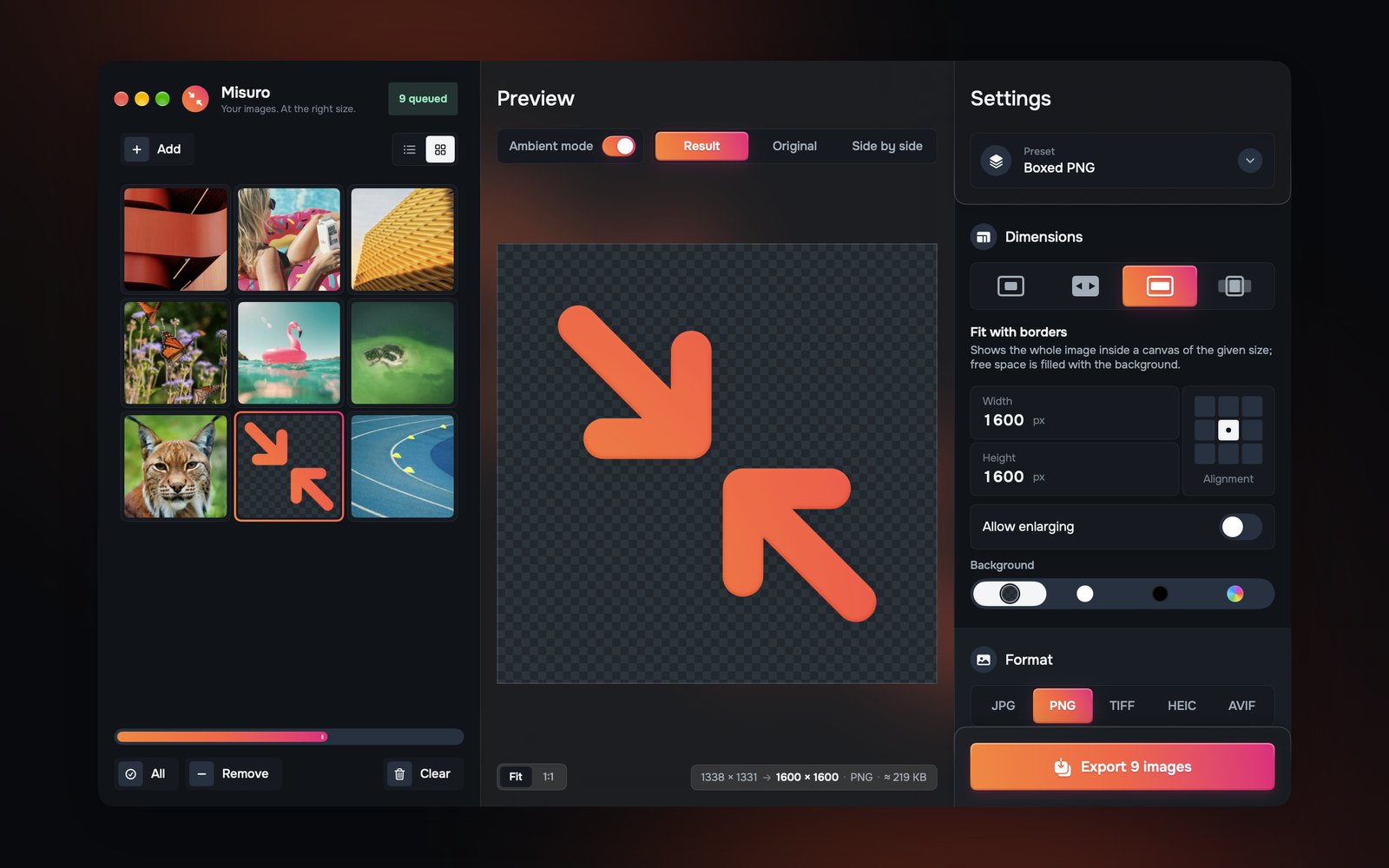
Converting to WebP with Misuro
- Drop the images or the folder into the window.
- Choose the size: a preset such as Web — Width 1920, or leave width and height on Auto to convert at the original size.
- In Format choose WebP and set the quality: 85–90 for photos, around 80 for screenshots and graphics.
- For PNGs with a transparent background, leave Keep transparency on.
- Check the estimated weight under the preview, then export.
Colours: choose sRGB in Colour & Metadata for the web. Misuro leaves sRGB WebP files without an embedded profile, as browsers expect, so they stay as light as possible.
Should you convert everything to WebP?
Not necessarily. For a website it’s a good default, especially for graphics. For email, clients and printing, JPEG is still more universal. And if your site supports it, AVIF saves more on photos at the same quality. The right format depends on the content and on where it ends up.

Misuro for Mac
Resize, crop and convert batches of photos, with presets, watermarks and metadata control. Offline, one-time purchase.

Read next
Photo credits
Cover photo: Ales Krivec on Unsplash+.